
iPhone Backup Options: iCloud vs Computer vs External Storage
If your iPhone is lost, damaged, stolen, or suddenly stops working, the backup you made yesterday can make all the difference. The good news is that you…
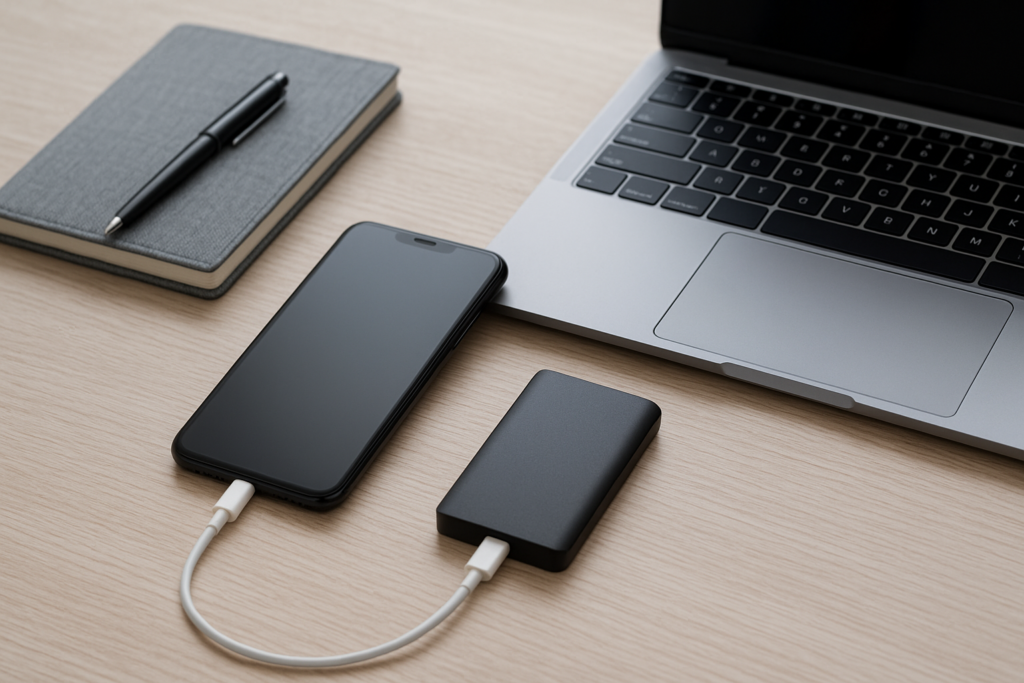
If your iPhone is lost, damaged, stolen, or suddenly stops working, the backup you made yesterday can make all the difference. The good news is that you have several solid backup options, and the best choice depends on how much control you want, how much storage you have, and how often you want backups to happen without thinking about them.
For most people, the smartest approach is not choosing just one method. A simple backup plan often uses iCloud for convenience and a computer or external storage for an extra layer of protection. That matters whether you are a homeowner trying to protect family photos and messages or a business owner who relies on contacts, notes, and work files stored on an iPhone.
Below, we break down iCloud backups, computer backups, and external storage in plain English so you can choose the right setup for your needs. If you want safe, practical guidance, iPhoneXpert can help through remote help or the relevant iPhone help page.
Why iPhone backups matter before something goes wrong
Many people think about backups only after a problem happens. That is usually too late. A backup is your safety copy of the data on your phone, including photos, messages, app data, settings, and other personal information depending on the backup method you use.
Backups are especially important before:
- Replacing or upgrading an iPhone
- Resetting the device for troubleshooting
- Repairing a phone with screen, battery, or storage issues
- Moving to a new phone after loss or theft
- Fixing account, email, or sync problems
For local users, this also matters when you are dealing with everyday issues like a cracked screen, water damage, or a phone that will not turn on. If your device is acting up, it is wise to back up first if possible before trying major fixes.
iCloud backup: the easiest option for most people
iCloud backup is popular because it runs over Wi-Fi and can happen automatically when your iPhone is charging, locked, and connected to the internet. For many users, that convenience is the biggest advantage. You do not need a cable, and you do not need to remember to connect to a computer.
iCloud backup can be a strong choice if you want a low-effort routine and you are comfortable managing your Apple storage plan. It is also helpful if you travel often or do not regularly use a computer.
Pros of iCloud backup
- Automatic when set up correctly
- No computer required
- Useful for quick recovery after a lost or replaced phone
- Easy for families and busy households
- Good for people who want backups to happen in the background
Limits to keep in mind
- Requires enough iCloud storage space
- Depends on a stable Wi-Fi connection
- May not be ideal if you want a local copy you control directly
- Can be confusing if storage is full or backups are failing silently
If your backup has not run in a while, check the date of the last successful backup. Many people assume iCloud is working because it is turned on, but storage limits or account issues can stop it from completing.
Computer backup: a reliable local copy you control
Backing up an iPhone to a Mac or Windows computer gives you a local copy of your data. This is a practical option if you want more direct control over the backup file or if you prefer not to rely only on cloud storage.
Computer backups are often a good fit for people who keep a laptop or desktop at home, or for small business owners who maintain a dedicated work computer. They are also useful if you want to archive a backup before making major changes to your phone.
Pros of computer backup
- Stored locally on your own device
- Does not depend on cloud storage space
- Useful before repairs, resets, or transfers
- Can be faster for large backups on a good connection
- Helpful if you want a second backup method alongside iCloud
Limits to keep in mind
- You must remember to connect and back up regularly
- The computer itself can fail, be lost, or be damaged
- Backups may be outdated if you do not keep up with them
- Some users find the process less convenient than iCloud
For business owners, a computer backup can be especially useful before switching phones or troubleshooting a device used for work email, calendars, and client communication. It is a good habit to back up before any major change so you are not trying to recover data under pressure.
External storage: extra protection for important files
External storage can mean several things, including an external hard drive, SSD, or another secure storage solution used alongside your computer backup. In some cases, people also use file export tools or photo transfer methods to keep a separate copy of important content outside the phone and outside the cloud.
This option is not always the simplest, but it can be useful if you want another layer of protection for photos, videos, documents, and other files that matter to you. It is especially helpful for people with large media libraries or those who want a backup copy they can store offline.
Pros of external storage
- Creates another copy outside the phone and cloud
- Useful for archiving photos and videos
- Can be stored offline for added control
- Helpful for long-term file retention
Limits to keep in mind
- Usually requires more manual setup
- Not as simple as automatic iCloud backups
- Can be confusing if you are not sure what is included
- Still needs careful handling to avoid loss or damage
External storage is best viewed as a second line of defense, not your only backup plan. If you use it, make sure you know exactly where the files are stored and how often they are updated.
Which backup option is best for homeowners and business owners?
The right choice depends on how you use your phone and how much time you want to spend managing backups. Here is a simple way to think about it.
For homeowners and families
If your iPhone holds family photos, school contacts, messages, and personal notes, iCloud is often the easiest starting point. It is convenient and more likely to stay current if you set it up properly. A computer backup adds extra peace of mind, especially before an upgrade or repair.
For business owners and self-employed users
If your iPhone is tied to work email, appointments, client messages, or business documents, a two-part backup plan is usually smarter. Use iCloud for automatic protection and a computer backup for a local copy you can access if needed. If your work depends on the phone, do not wait until a problem interrupts your day.
For people with limited storage or older devices
If your phone is nearly full, backup issues can happen more easily. In that case, check what is taking up space and confirm that your backup is actually completing. Sometimes the best next step is not a new backup method, but cleaning up storage and verifying the current setup.
How to choose a backup plan that actually works
A backup plan only helps if it is current and easy enough to keep using. The most practical setup is usually the one you can maintain without much effort.
- Use iCloud if you want automatic backups and simple recovery
- Use a computer backup if you want a local copy you control
- Use external storage if you want an extra offline copy of important files
- Use more than one method if the data on your phone matters a lot
For many people, the best answer is a combination: iCloud for convenience, plus a computer backup before major changes, plus external storage for selected files like photos or documents. That layered approach can reduce stress if your phone is lost, damaged, or replaced.
Backup tips before resets, repairs, or phone transfers
Before you reset an iPhone, send it in for repair, or move to a new device, take a few minutes to confirm your backup is current. This is one of the simplest ways to avoid losing important data.
- Check the date and time of the last successful backup
- Make sure you have enough storage space in iCloud or on your computer
- Keep the phone charged during the backup process
- Use a stable Wi-Fi connection if backing up to iCloud
- Do not erase or trade in the phone until you know the backup is complete
If you are preparing for a repair, it is also wise to save any important photos, notes, or files separately if possible. That extra step can be helpful if the device has hardware damage or becomes harder to access later.
When to ask for help with iPhone backups
Sometimes backup problems are simple, but sometimes they are tied to storage limits, account settings, device errors, or sync issues that are not obvious. If your backup keeps failing, your phone is full, or you are not sure which method is safest for your situation, getting guidance can save time and reduce mistakes.
iPhoneXpert offers remote help and practical iPhone support for people who want clear next steps without guesswork. If you need help choosing between iCloud, computer backup, or external storage, or if you want to prepare your phone before a reset, repair, or transfer, use the iPhoneXpert remote help request form or visit the relevant iPhone help page for safe, practical guidance.
Backups are one of the easiest ways to protect your data, but only if they are set up and checked regularly. A little planning now can make a big difference later.
Use iPhoneXpert tools before you spend money.
Compare repair, replacement, storage, security, buying, and remote-help options with practical tools built for everyday iPhone owners.
Reviewed for practical iPhone, Mac, and device-care guidance.
iPhoneXpert content is written to help readers make safer repair, buying, setup, storage, iCloud, and security decisions. Recommendations should prioritize fit, compatibility, safety, and value.
How this guide is maintained
This article is part of the iPhoneXpert reader guide library. We review practical repair, protection, buying, and troubleshooting pages for clarity and usefulness as devices, software, and repair choices change.
Need help deciding what to do?
Compare repair costs, replacement value, data risk, and urgency before you spend money.
Repair or replace?