
Best iPhone Apps for Travel Days, Airports, and International Trips
Travel days are easier when your iPhone is set up for the real-world problems that happen between home, the airport, and your destination. A good travel…
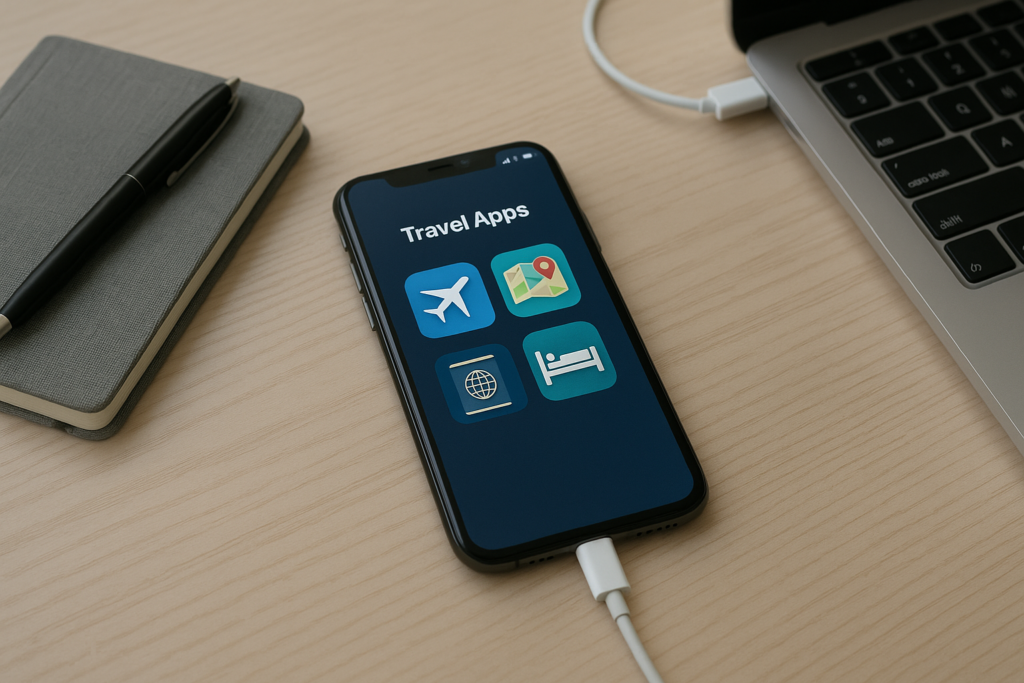
Travel days are easier when your iPhone is set up for the real-world problems that happen between home, the airport, and your destination. A good travel app can help you find your gate, keep boarding passes handy, translate a sign, track a delayed bag, or get back online when your data plan changes. The key is choosing apps that are practical, privacy-aware, and simple enough to use when you are tired, rushed, or offline.
This guide covers useful iPhone apps for flights, airport time, international travel, and the small tech issues that often show up along the way. It also includes a few setup tips for homeowners, business owners, and anyone who wants a smoother trip without handing over unnecessary personal information.
Start with the travel apps that solve the biggest problems
The best travel apps are the ones that reduce stress before it starts. If you only install a few, focus on the basics: airline access, maps, translation, notes, and a secure way to store important documents. That gives you a solid setup for check-in, navigation, and quick reference when you are offline or in a crowded terminal.
- Airline app: Use your airline’s official app for boarding passes, gate changes, seat updates, and baggage tracking when available.
- Apple Wallet: Keep boarding passes, tickets, and supported travel passes in one place for faster access.
- Maps app: Download offline areas before you leave so you can still navigate if signal is weak.
- Translation app: Helpful for menus, signs, directions, and basic conversations in another language.
- Notes or Files: Store hotel details, reservation numbers, and emergency contacts in a simple, searchable format.
If you travel often for work, it helps to keep these apps organized in one folder and test them before the trip. A five-minute check at home can save a lot of frustration at the airport.
Best iPhone apps for airports and flight days
Airports are where small phone problems become big ones. Low battery, weak Wi-Fi, crowded networks, and last-minute gate changes can make it hard to stay organized. The right apps help you move faster and keep important information close at hand.
Flight and itinerary apps
Airline apps are usually the first place to start because they often show the most current trip details. Many can store your boarding pass, notify you about delays, and show baggage claim information. If you use a third-party itinerary app, make sure it is from a trusted company and only connect the accounts you actually need.
Airport navigation and lounge tools
Large airports can be confusing, especially during tight connections. Airport map apps can help you find terminals, restrooms, food, and gates more quickly. If you use airport lounge access through a membership or credit card, keep the app or digital card ready before you arrive so you are not trying to log in at the door.
Battery and charging helpers
Your iPhone battery matters more on travel days than almost any other day. A battery widget, low-power mode reminder, or simple charging checklist app can help you avoid running out of power before boarding. It is also smart to pack a certified charging cable and a power bank that meets airline rules.
For business owners, a dead phone can mean missed calls, delayed approvals, or lost access to travel confirmations. For homeowners traveling with family, it can mean losing access to hotel details, ride reservations, or shared location updates. A reliable charging plan is part of travel prep, not an afterthought.
International trip apps that make communication easier
Once you leave your home network, your iPhone becomes even more important for communication. International travel can bring roaming charges, language barriers, and spotty Wi-Fi. The right apps can help you stay connected without oversharing personal information.
Translation and language tools
Translation apps are useful for reading signs, ordering food, asking for directions, and handling simple travel situations. Some apps let you download language packs ahead of time, which is especially helpful if you expect limited internet access. A downloaded language pack can be more reliable than trying to translate on the spot with weak signal.
Messaging and calling apps
Before you leave, check which messaging apps work best with your contacts and whether they support voice calls over Wi-Fi. If you are traveling for work, confirm how your team prefers to communicate across time zones. Keep in mind that public Wi-Fi is not the place to make risky account changes or enter sensitive information unless you are using a secure, trusted connection.
Maps and local transport apps
Local transit apps, rideshare apps, and offline maps can make it easier to get from the airport to your hotel or meeting. Download the city map and save your hotel address before you leave. That way, if your phone is in airplane mode or your data is limited, you still have the basics.
When traveling internationally, it is also wise to review your iPhone’s cellular settings, roaming options, and app permissions before departure. If you are not sure what to change, get help before you leave rather than trying to troubleshoot in a taxi line or airport terminal.
Privacy-first apps and settings worth using before you leave
Travel often means using unfamiliar networks, public charging stations, and shared spaces. That makes privacy and account safety more important. The best travel setup is one that keeps your information accessible without making it easy for someone else to misuse it.
- Password manager: Use a reputable password manager to store logins securely instead of writing them in notes.
- Authenticator app: If you use two-factor authentication, make sure your codes are available on your trusted device before you travel.
- Find My: Turn on location sharing for your own devices so you can locate a lost iPhone, AirPods, or bag tag accessory if needed.
- Offline document storage: Keep copies of your passport, travel insurance, and reservations in a secure app or encrypted file storage.
- VPN app: If your employer or security policy recommends one, install and test it before your trip.
Do not store sensitive information in a way that is easy to expose on a lost or borrowed phone. Avoid sharing passwords, Apple ID credentials, or verification codes with anyone. If an app asks for more access than it needs, pause and review the permissions first.
Useful travel apps for families, homeowners, and business owners
Different travelers have different needs. A family heading out for vacation may want shared calendars and location sharing. A homeowner leaving for a week may want smart home access and delivery tracking. A business owner may need email, calendar, file access, and a clean way to handle calls while away.
For families
Shared calendar apps, location sharing, and note-sharing tools can help everyone stay on the same page. If you are traveling with kids, keep entertainment apps downloaded ahead of time and test headphones before leaving home. It is also smart to save emergency contacts in a place that is easy to reach from the lock screen if your family uses that feature.
For homeowners
If you are away from home, smart home apps can help you check cameras, thermostats, lights, and door locks. Make sure the apps are updated and that you know how to sign in securely before you depart. If you rely on package delivery while you are gone, tracking apps can help you monitor arrivals and avoid missed deliveries.
For business owners
Business travelers often need email, cloud storage, calendar access, and secure document apps. Keep work apps separate from personal ones when possible, and review which notifications you actually need during the trip. Too many alerts can make it harder to spot the important ones, especially during boarding or customs checks.
For local service customers, this matters because travel problems do not wait for a convenient time. If you are leaving from a busy airport, moving between cities, or trying to manage work on the road, a stable iPhone setup can save time and reduce stress.
Simple iPhone setup tips before you head to the airport
Most travel headaches can be reduced with a few quick checks before you leave home. These steps are especially helpful if you are flying early, traveling with family, or using your phone for both personal and business tasks.
- Update your apps: Install updates before you leave so you are not waiting on downloads at the gate.
- Download offline content: Save maps, boarding passes, music, podcasts, and key documents ahead of time.
- Check storage space: Free up room if your phone is nearly full so apps can work properly and photos can still save.
- Test your battery: Bring a charger, cable, and power bank that you know work with your device.
- Review notifications: Turn on alerts for flights, rides, and important messages while reducing noise from less important apps.
- Back up your iPhone: Back up before a trip in case the phone is lost, damaged, or replaced while you are away.
If you are switching SIMs, using eSIM, changing carriers, or setting up a new phone before travel, do that well in advance. Last-minute changes can create avoidable account or connectivity issues.
When to get help with your iPhone travel setup
Some travel issues are simple, but others are worth reviewing before you leave. If your boarding pass will not load, your maps are not downloading, your apps keep signing out, or your phone is not behaving the way it should, it is better to sort it out early. The same is true if you are worried about roaming, international data, backup settings, app permissions, or account security.
iPhoneXpert offers remote help for practical iPhone guidance, including travel setup, app troubleshooting, privacy-first account checks, and general device support. If you want safe, clear help before a trip, use the iPhoneXpert remote help request form or the relevant iPhone help page so you can travel with fewer surprises and a better plan.
Before any major reset, repair, transfer, or account change, make a backup first. That simple step protects your photos, messages, and important travel details if something goes wrong.
Use iPhoneXpert tools before you spend money.
Compare repair, replacement, storage, security, buying, and remote-help options with practical tools built for everyday iPhone owners.
Reviewed for practical iPhone, Mac, and device-care guidance.
iPhoneXpert content is written to help readers make safer repair, buying, setup, storage, iCloud, and security decisions. Recommendations should prioritize fit, compatibility, safety, and value.
How this guide is maintained
This article is part of the iPhoneXpert reader guide library. We review practical repair, protection, buying, and troubleshooting pages for clarity and usefulness as devices, software, and repair choices change.
Need help deciding what to do?
Compare repair costs, replacement value, data risk, and urgency before you spend money.
Repair or replace?