
How to Free Up iPhone Storage Without Deleting Everything
If your iPhone keeps warning that storage is full, you do not always need to start deleting photos, apps, or messages right away. In many cases, the…
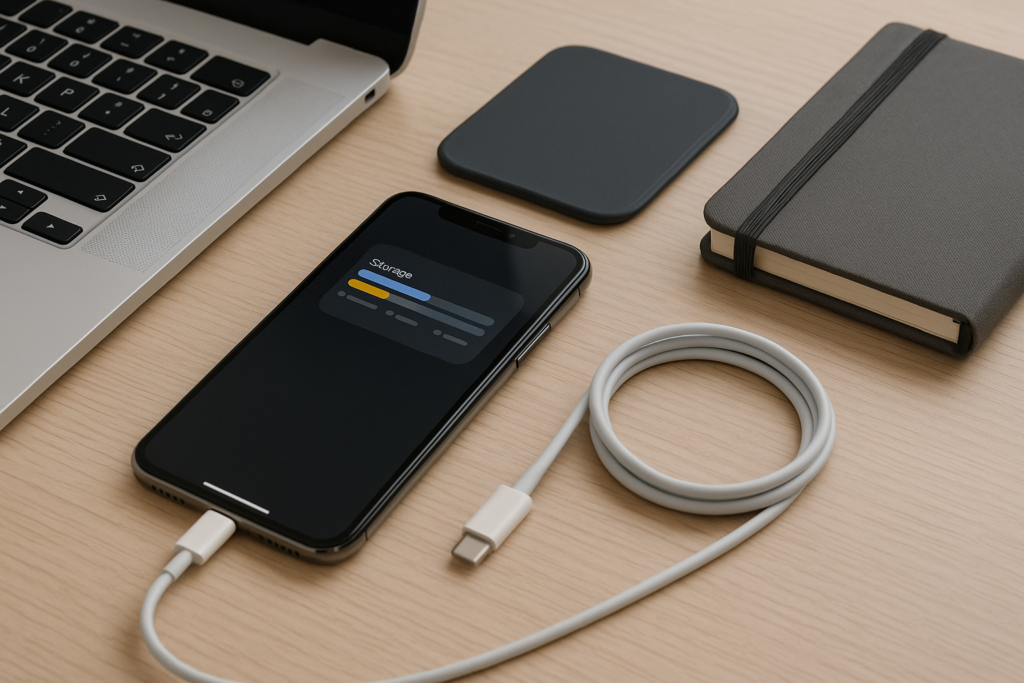
If your iPhone keeps warning that storage is full, you do not always need to start deleting photos, apps, or messages right away. In many cases, the problem is a mix of cached files, large attachments, old downloads, duplicate media, and app data that has built up over time. The good news is that there are practical ways to free space without wiping your phone clean or risking important information.
This guide walks through safe, everyday steps you can use at home, at work, or while managing a busy family device. It is especially helpful if your iPhone is used for business photos, email, documents, or shared family storage and you want to keep the important stuff while clearing out the clutter. If you want hands-on guidance, iPhoneXpert remote help can walk you through the process step by step.
Start by checking what is actually using storage
Before you remove anything, look at the storage breakdown on your iPhone. This helps you avoid deleting the wrong thing and shows where the biggest gains are likely to come from.
Go to Settings, then General, then iPhone Storage. Wait a moment for the list to load. You will usually see categories such as Photos, Apps, Messages, Mail, System Data, and media apps like Podcasts or streaming services.
Pay attention to the largest items first. If one app is taking several gigabytes, that is often a better place to start than deleting random photos or contacts. For many people, the biggest storage users are not obvious until they check this screen.
What to look for first
- Apps you rarely open but that store a lot of data
- Large message attachments such as videos, photos, and PDFs
- Downloaded media in streaming apps
- Offline files in documents, notes, or cloud storage apps
- System Data that has grown over time from caches and temporary files
Clear out large attachments without losing your conversations
Messages can quietly use a surprising amount of storage, especially if you text photos, videos, voice notes, or documents. The goal is not to erase your message history if you still need it. Instead, remove the biggest attachments while keeping the conversation threads intact.
Open a conversation and review the shared media. You may find old videos, repeated images, screenshots, or files you no longer need on the device. Removing those attachments can free space quickly while preserving the text thread for reference.
If you use Messages for work, this can be especially useful for homeowners, contractors, real estate agents, service businesses, and anyone who keeps project photos in text threads. It is a good habit to save important files elsewhere before removing them from the phone.
Safer ways to manage message storage
- Save important photos or files to cloud storage before deleting them from Messages
- Review large attachments in the iPhone Storage menu
- Delete only the media you do not need on the phone anymore
- Keep a separate backup of business-related conversations if they matter for records
Offload apps instead of deleting them
If an app is taking up too much space, you do not always need to remove it completely. The Offload App feature deletes the app itself but keeps its documents and data. That means you can reinstall it later without starting from scratch in many cases.
This is a useful option for apps you use only occasionally, such as travel tools, shopping apps, event apps, or seasonal business apps. It can also help if you want to free storage without losing login settings, saved preferences, or local files tied to the app.
To offload an app, go to Settings, General, iPhone Storage, choose the app, and tap Offload App if the option is available. If you are not sure whether an app is safe to offload, check whether it stores important local files before you proceed.
Good candidates for offloading
- Apps you use only a few times a year
- Large games you are not actively playing
- Event or travel apps after the trip is over
- Secondary business tools that are not needed every day
Remove downloads, cached media, and offline files
Many apps keep downloaded content on your iPhone even after you finish using it. Streaming apps, podcast apps, maps, document tools, and cloud storage apps can all store offline files that take up space in the background.
Check apps you use often and look for downloaded episodes, saved playlists, offline maps, training videos, PDFs, or project files. These are easy to forget because they are not always visible in the main photo library or app list.
If you manage a home or business and use your phone for invoices, manuals, estimates, or travel documents, review your file apps carefully. A few large PDFs or video files can use more space than expected.
Places where hidden downloads often live
- Podcast and music apps
- Video streaming apps with offline viewing
- Navigation apps with downloaded maps
- Cloud storage apps with offline access enabled
- File manager apps and document scanners
Use Photos and videos more efficiently
Photos and videos are often the biggest storage category on an iPhone. You do not need to delete everything to make a meaningful difference. Start by reviewing the largest files, duplicates, screenshots, and short clips you no longer need.
Many people keep dozens of screenshots that were only needed once, along with repeated photos, blurry shots, and long videos that could be moved to another storage location. If you want to keep your memories and still free space, consider moving older media to a trusted cloud service or computer backup before removing it from the phone.
For business owners, this is also a good time to separate personal photos from work photos. Project images, before-and-after shots, and jobsite videos can add up quickly. Keeping a backup outside the phone makes it easier to clear space without losing records.
Photo cleanup that does not feel drastic
- Delete duplicate shots and blurry images
- Remove old screenshots you no longer need
- Trim long videos or move them to backup storage
- Review the Recently Deleted album and clear it after you are sure
- Back up important albums before making major changes
Reduce storage used by Mail, Notes, and other everyday apps
Mail and Notes can store more data than many people realize. Large email attachments, long message threads, scanned documents, and saved files can build up over time. If your iPhone is used for work, school, or family logistics, these apps may be part of the storage problem.
In Mail, look for old messages with large attachments and delete only what you no longer need. In Notes, check for scans, images, and files that may be stored locally. If you use third-party apps for scanning, task management, or document storage, review those too.
This is a good example of why a careful review works better than a full cleanup. You can often free a useful amount of space by trimming attachments and old files while keeping the apps and data you still rely on every day.
Helpful habits for busy households and businesses
- Save important documents to a cloud folder or computer backup
- Delete old email attachments after confirming you have another copy
- Review scanned documents and remove duplicates
- Keep work files organized so they are easier to move off the phone later
Check System Data and know when to get help
System Data can be confusing because it does not always point to one simple file or app. It may include caches, logs, temporary files, and other background data that iPhone uses to run smoothly. Some amount of System Data is normal, but if it grows very large, it can contribute to storage warnings.
There are a few safe things you can try first, such as restarting the iPhone, updating iOS, and clearing out large app data. Avoid random “cleaner” apps that promise dramatic results, especially if they ask for broad access to your device. Privacy-first cleanup is usually safer than installing unknown tools.
If storage remains tight after you have reviewed photos, messages, downloads, and apps, remote help can be useful. A guided session can help you identify what is taking up space, decide what to keep, and avoid accidental deletion of important files. That is especially helpful if the phone is used for business, family records, or shared accounts.
Simple storage habits that prevent the problem from coming back
Once you free up space, a few small habits can help keep your iPhone manageable. You do not need a major cleanup every week. A quick monthly review is often enough for most users.
Try to make storage maintenance part of your regular routine, especially if your phone is your main camera, work device, or communication tool. A little organization now can save time later and reduce the chance of running into a full-storage warning at the wrong moment.
Easy habits to keep storage under control
- Review iPhone Storage once a month
- Move important photos and videos to backup storage regularly
- Delete old downloads after trips, projects, or events
- Offload apps you only use occasionally
- Keep message attachments and email files trimmed down
If you want safe, practical guidance without guessing what to delete, iPhoneXpert can help. Use iPhoneXpert remote help or the relevant iPhone help page when you are ready for step-by-step support with storage cleanup, app review, backups, or other iPhone issues. It is a smart option if you want to free space without deleting everything and without risking the files you still need.
Use iPhoneXpert tools before you spend money.
Compare repair, replacement, storage, security, buying, and remote-help options with practical tools built for everyday iPhone owners.
Reviewed for practical iPhone, Mac, and device-care guidance.
iPhoneXpert content is written to help readers make safer repair, buying, setup, storage, iCloud, and security decisions. Recommendations should prioritize fit, compatibility, safety, and value.
How this guide is maintained
This article is part of the iPhoneXpert reader guide library. We review practical repair, protection, buying, and troubleshooting pages for clarity and usefulness as devices, software, and repair choices change.
Need help deciding what to do?
Compare repair costs, replacement value, data risk, and urgency before you spend money.
Repair or replace?