
Green Line on iPhone Screen: What It Means and What to Do Next
If you see a green line on your iPhone screen, it usually means something is wrong with the display itself, the connection between the display and the…
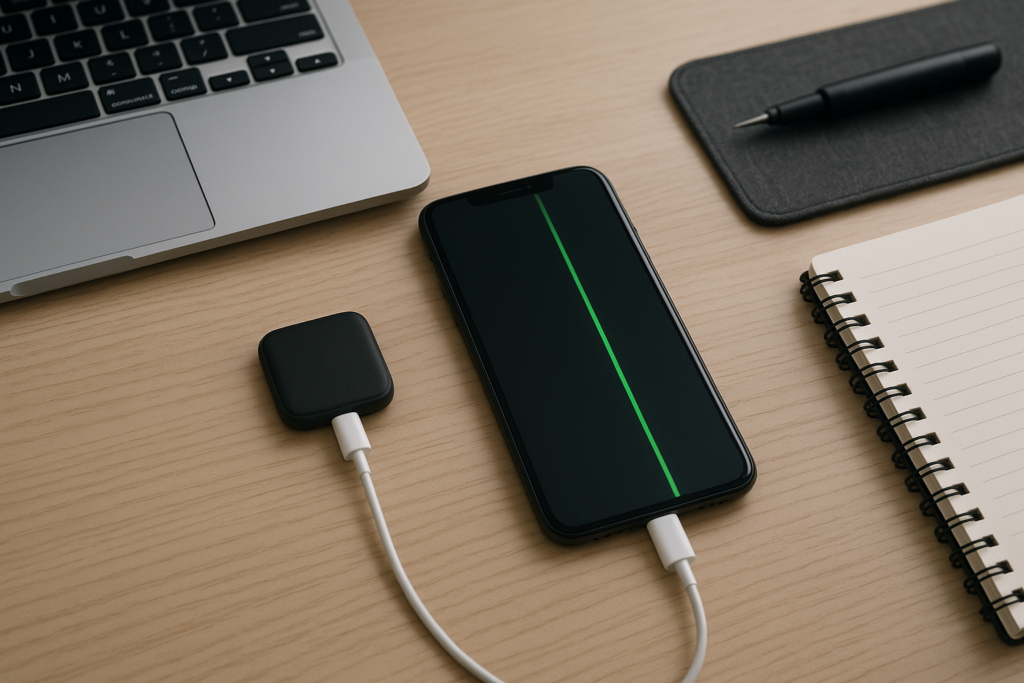
The good news is that a green line does not always mean the phone is unusable. The important step is to narrow down whether the issue is software-related, hardware-related, or the result of physical damage. Before you try anything major, back up your iPhone if you can. That protects your photos, messages, and files in case the screen gets worse or stops responding.
What a Green Line Usually Means
A green vertical line on an iPhone screen is often tied to the display hardware. On many phones, the OLED or LCD panel has a small failure in the screen layers, the display connector, or the controller that manages image output. When that happens, one part of the screen may show a line even though the rest of the phone still functions.
Sometimes the line appears after a drop, a bend, or pressure in a pocket, bag, or car seat. Other times it shows up after moisture exposure or after the phone has been repaired before. If the line appeared suddenly after an update or restart, a software glitch is possible, but hardware is still the more common cause.
First Checks You Can Do at Home
Before assuming the screen needs replacement, try a few safe checks. These steps do not fix every case, but they can help you understand whether the problem is temporary or likely hardware-related.
- Restart the iPhone and see whether the line changes or disappears.
- Take a screenshot. If the green line does not appear in the screenshot, the issue is likely the physical display rather than the software image.
- Adjust brightness and turn off features like True Tone or Night Shift briefly to see whether the line changes.
- Check whether the line appears on the lock screen, home screen, apps, and camera view.
- Look for other signs of damage such as cracks, screen separation, flickering, touch problems, or discoloration.
If the line is always in the same place and stays visible after a restart, that is a strong sign of a display issue. If it comes and goes, software or connector problems may still be involved.
When the Problem Is Likely Hardware
Green lines that stay fixed in one spot are often caused by display panel damage. This can happen even if the glass is not visibly cracked. Modern iPhone displays are layered components, so a phone can look fine on the outside while the panel underneath has failed.
Hardware issues are more likely if:
- The line appeared after a drop or impact.
- The phone was exposed to water, steam, or heavy humidity.
- The screen has been replaced before.
- The display flickers, dims, or shows more than one line.
- Touch response is delayed or stops working in part of the screen.
In these cases, a screen repair or display replacement is often the practical next step. A technician can also check the display connector, internal damage, and signs of corrosion before recommending a repair path.
What to Do Before You Bring It in for Repair
If your iPhone still responds, take a few minutes to protect your data and make the repair process easier. This matters for homeowners, business owners, and anyone who relies on their phone for photos, contacts, work messages, or two-factor authentication.
- Back up your iPhone to iCloud or a computer if possible.
- Write down your Apple ID and passcode for your own reference, but never share passwords or verification codes with anyone.
- Remove any case or screen protector if it is lifting the display or trapping heat.
- Note when the line started and whether it followed a drop, update, or liquid exposure.
- If the phone is still under warranty or coverage, check your service options before paying out of pocket.
If the screen is still usable, avoid pressing on it, bending the phone, or repeatedly tapping the affected area. That can make an existing display problem worse.
Homeowner and Business Owner Tips for Handling the Issue
For homeowners, the biggest concern is usually protecting personal data and deciding whether the phone is worth repairing. For business owners, the issue can be more urgent because the phone may hold client communication, payment apps, scheduling tools, or work authentication access.
For homeowners
Use the phone only as needed until you know whether the display is stable. If the line is growing, the screen is flickering, or touch is failing, back up your data right away. If the phone is your main camera or family communication device, plan the next step before the screen gets worse.
For business owners
If the phone is tied to work accounts, deliveries, appointments, or customer messages, treat the issue as a service interruption. Move important logins to a backup device if you already have one, and avoid making account changes on a screen that is hard to read. If the display is unreliable, get help sooner rather than later so you do not lose access during a busy day.
In both cases, avoid entering sensitive account details on a device that may be failing if you cannot clearly see what is on the screen. Privacy and accuracy matter more than trying to push through a bad display.
When a Software Fix Might Help
Although a green line is often hardware-related, there are a few software steps worth trying if the phone otherwise seems normal. These steps are safe and low risk when done carefully.
- Update iOS if a newer version is available and the phone is stable enough to complete the update.
- Restart the phone after the update and check whether the line changes.
- Reset all settings only if needed, and only after backing up the device first.
- Test the screen after closing apps or changing display settings.
Do not rush into a full erase unless you have already backed up the device and you have a clear reason to test software. A reset can help with some unusual display behavior, but it will not repair a damaged panel.
Why Local, Practical Help Matters
Screen issues are frustrating because they can start small and become harder to ignore. If you are in a local service area and need quick guidance, it helps to work with someone who can talk through the symptoms, explain the likely cause, and help you decide whether repair makes sense before you spend time or money on the wrong fix.
That is especially useful if you are trying to keep a family phone, a work phone, or a shared device running with minimal disruption. A practical check can save time, reduce guesswork, and help you avoid unnecessary steps that might put your data at risk.
When to Get Help Right Away
Some signs mean you should stop troubleshooting and get help soon:
- The green line gets brighter, wider, or multiplies.
- The screen flickers, goes black, or shows random colors.
- Touch stops working in part of the display.
- The phone was recently dropped or exposed to liquid.
- You need the device for work, travel, or time-sensitive communication.
If the phone is heating up, swelling, or behaving unpredictably, power it down if you can do so safely and seek support. Do not keep charging a device that seems physically damaged.
Get Safe, Practical Guidance from iPhoneXpert
If you are dealing with a green line on your iPhone screen and want clear next steps, iPhoneXpert can help with remote support and practical troubleshooting guidance. Use the iPhoneXpert remote help request form or the relevant iPhone help page when you want a privacy-first, straightforward review of what may be happening and what to do next.
Before any repair, reset, or transfer, make sure your data is backed up. If you are unsure whether the issue is software, display damage, or something else, reach out for help before the problem gets worse. A careful check now can make the next step much easier.
Use iPhoneXpert tools before you spend money.
Compare repair, replacement, storage, security, buying, and remote-help options with practical tools built for everyday iPhone owners.
Reviewed for practical iPhone, Mac, and device-care guidance.
iPhoneXpert content is written to help readers make safer repair, buying, setup, storage, iCloud, and security decisions. Recommendations should prioritize fit, compatibility, safety, and value.
How this guide is maintained
This article is part of the iPhoneXpert reader guide library. We review practical repair, protection, buying, and troubleshooting pages for clarity and usefulness as devices, software, and repair choices change.
Need help deciding what to do?
Compare repair costs, replacement value, data risk, and urgency before you spend money.
Repair or replace?