
Charging Port Not Working? A Practical iPhone Troubleshooting Guide
Charging Port Not Working? A Practical iPhone Troubleshooting Guide If your iPhone only charges at a certain angle, stops charging when you move the…
Charging Port Not Working? A Practical iPhone Troubleshooting Guide
If your iPhone only charges at a certain angle, stops charging when you move the cable, or does nothing at all when you plug it in, the charging port may be dirty, damaged, or affected by a software issue. The good news is that many charging problems can be checked safely at home before you decide on repair. The key is to troubleshoot carefully, avoid forcing the connector, and protect your data before making any major changes.
Start with the simplest checks
Before assuming the charging port has failed, rule out the easy causes. A surprising number of “dead port” problems are actually caused by a worn cable, a weak power adapter, a dirty connector, or a case that prevents a full connection.
- Try a different Lightning cable or USB-C cable if your model uses USB-C.
- Test a different wall adapter and a different outlet.
- Remove thick cases, dust covers, or accessories that may block the plug.
- Check whether the cable feels loose in the port or only works when held in one position.
- Look for a charging icon, battery percentage change, or any sign of life after connecting.
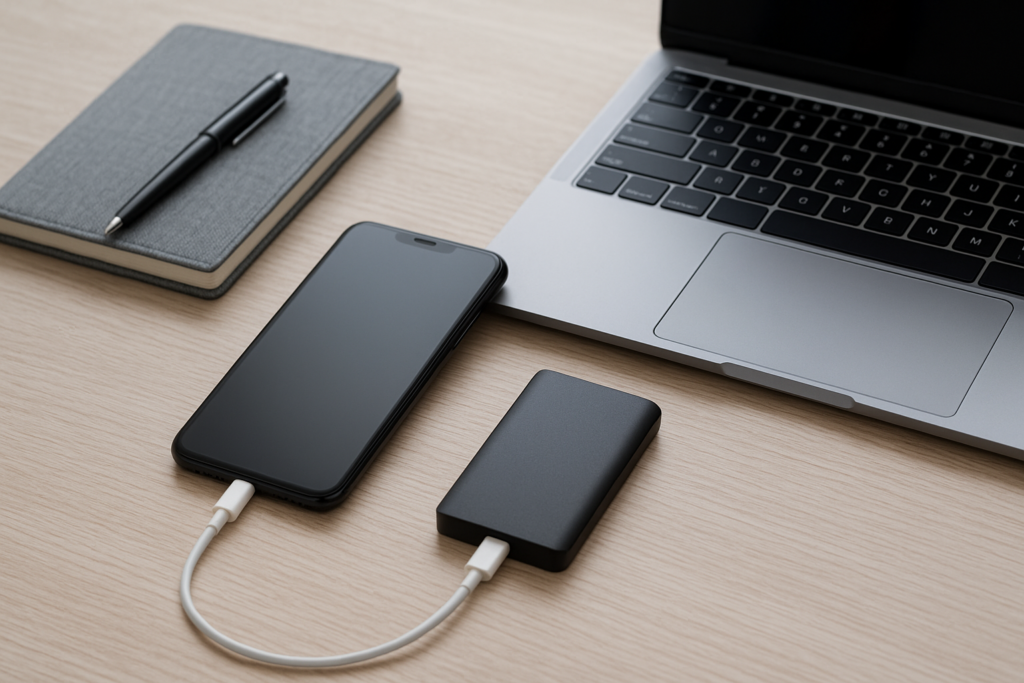
If you are using a laptop, car charger, or power bank, test with a standard wall charger as well. Some power sources provide inconsistent output, especially if they are older or heavily used. For business owners who rely on iPhones for calls, deliveries, scheduling, or mobile payments, it is worth testing with a known-good charger before assuming the device needs service.
Inspect the charging port safely
Lint, pocket dust, and tiny debris can build up inside the port and stop the cable from seating properly. This is one of the most common reasons an iPhone charges intermittently or not at all. Inspect the port under bright light and look for compacted debris, bent pins, corrosion, or signs of liquid exposure.
Use only gentle, dry cleaning methods. A soft, non-metal tool such as a wooden or plastic pick can sometimes help loosen debris, but it should be used carefully and without force. Do not use anything sharp, wet, or metallic inside the port. That can damage the contacts and make the problem worse.
- Power off the iPhone before cleaning the port.
- Use a flashlight to check for lint or visible damage.
- Gently remove loose debris without scraping the contacts.
- Never spray liquid into the port.
- Let the phone dry fully if you suspect moisture exposure.
If you recently used the phone in rain, near a sink, at the beach, or in a humid work environment, moisture may be part of the problem. Even if the phone seems dry on the outside, the port can still detect liquid and block charging until it is safe.
Rule out software and accessory issues
Sometimes the charging port is fine, but iOS is not recognizing the accessory correctly. A temporary software glitch, a battery management issue, or a damaged accessory can make the phone appear unresponsive.
Try a simple restart first. If the iPhone is frozen or not responding, use the appropriate force restart method for your model. After the restart, connect the charger again and watch for the charging symbol.
Also check for accessory warnings on the screen. If your iPhone says the accessory is not supported, the cable or adapter may be the issue rather than the port itself. Low-quality or worn cables can fail in ways that look like port damage.
- Restart the iPhone and test charging again.
- Update iOS if the phone can still power on and connect to Wi-Fi.
- Try charging with a certified cable and adapter.
- Disconnect any accessories, hubs, or adapters and test directly.
If the phone charges wirelessly but not through the port, that is useful information. It suggests the battery and much of the charging system may still be working, while the port, cable path, or port contacts need closer attention.
Signs the charging port may need repair
Some symptoms point beyond simple cleaning or cable replacement. If you notice repeated charging failures, the port may be physically worn, loose, or damaged from daily use. This is more common on phones that are plugged in many times a day, carried in pockets with lint, or used with cables that get tugged and bent.
Watch for these signs:
- The cable only works at a certain angle.
- The connector feels loose or does not click in firmly.
- The phone disconnects and reconnects repeatedly.
- Charging is very slow even with a known-good charger.
- The port looks corroded, bent, or physically damaged.
- The phone charges wirelessly but not through the port.
In some cases, the issue is not the port itself but related internal components, such as the charging flex cable, battery, or logic board connections. That is why a careful diagnosis matters before replacing parts.
Homeowner and business owner tips to avoid making it worse
Whether the phone is for personal use or for work, the safest approach is to avoid forcing the cable and avoid repeated plugging if the port feels unstable. Small mistakes can turn a minor cleaning issue into a more expensive repair.
For homeowners
- Keep the phone powered off while cleaning the port.
- Back up important photos, messages, and files before any repair visit.
- Use a certified charger and avoid cheap cables that fray quickly.
- Do not keep pressing the cable in if it feels blocked.
For business owners
- Keep a spare certified charger at the office or in the vehicle.
- Back up work contacts, notes, and app data regularly.
- Test charging before a shift, delivery run, or client visit.
- If the phone is used for payments or two-factor authentication, plan downtime carefully.
If your iPhone supports wireless charging, that can be a useful temporary workaround while you arrange service. Still, it is better to diagnose the port properly so you know whether the issue is simple debris or a part that needs replacement.
When to stop troubleshooting and get help
Stop testing and seek help if the port shows visible damage, the phone has been exposed to liquid, the connector feels stuck, or the device gets unusually hot while charging. Also pause troubleshooting if the battery is swollen, the screen is lifting, or the phone smells burnt. Those are safety concerns, not just charging problems.
You should also get help if the phone will not charge at all after trying a known-good cable, adapter, and outlet, or if it keeps disconnecting even after cleaning. At that point, the issue may involve the charging port assembly, battery health, or another internal fault that needs a proper inspection.
If you are preparing for a repair, transfer, or reset, make a backup first whenever possible. That helps protect your photos, messages, and app data if the device needs to be opened or replaced.
Local, practical support when you need a second opinion
Charging problems are frustrating because they can interrupt work, travel, and everyday routines. If you are in a local service area and want safe, practical guidance without guesswork, iPhoneXpert can help you narrow down the cause and decide on the next step. Remote troubleshooting is often a good first move when you want to avoid unnecessary repair costs or want to confirm whether the issue is the cable, the port, or something else.
For privacy-first support, keep your personal account details private and do not share passwords or verification codes. A good diagnostic conversation should focus on symptoms, charging behavior, and safe next steps, not on sensitive account access.
Get help from iPhoneXpert
If your iPhone charging port is not working, iPhoneXpert can help you work through the problem with remote help or point you to the relevant iPhone help page for practical next steps. That is a smart option if you want clear guidance before deciding on repair, replacement, or a temporary workaround.
Use the iPhoneXpert remote help request form when you want safe, practical support for charging issues, port troubleshooting, and other iPhone problems. If you are not sure where to start, the right help page can save time and help you avoid unnecessary damage.
Use iPhoneXpert tools before you spend money.
Compare repair, replacement, storage, security, buying, and remote-help options with practical tools built for everyday iPhone owners.
Reviewed for practical iPhone, Mac, and device-care guidance.
iPhoneXpert content is written to help readers make safer repair, buying, setup, storage, iCloud, and security decisions. Recommendations should prioritize fit, compatibility, safety, and value.
How this guide is maintained
This article is part of the iPhoneXpert reader guide library. We review practical repair, protection, buying, and troubleshooting pages for clarity and usefulness as devices, software, and repair choices change.
Need help deciding what to do?
Compare repair costs, replacement value, data risk, and urgency before you spend money.
Repair or replace?