
Best iPhone Camera Apps for Better Photos and Video
If your iPhone photos look soft, dark, or just not as sharp as you want, the right camera app can make a real difference. Some apps give you more control…
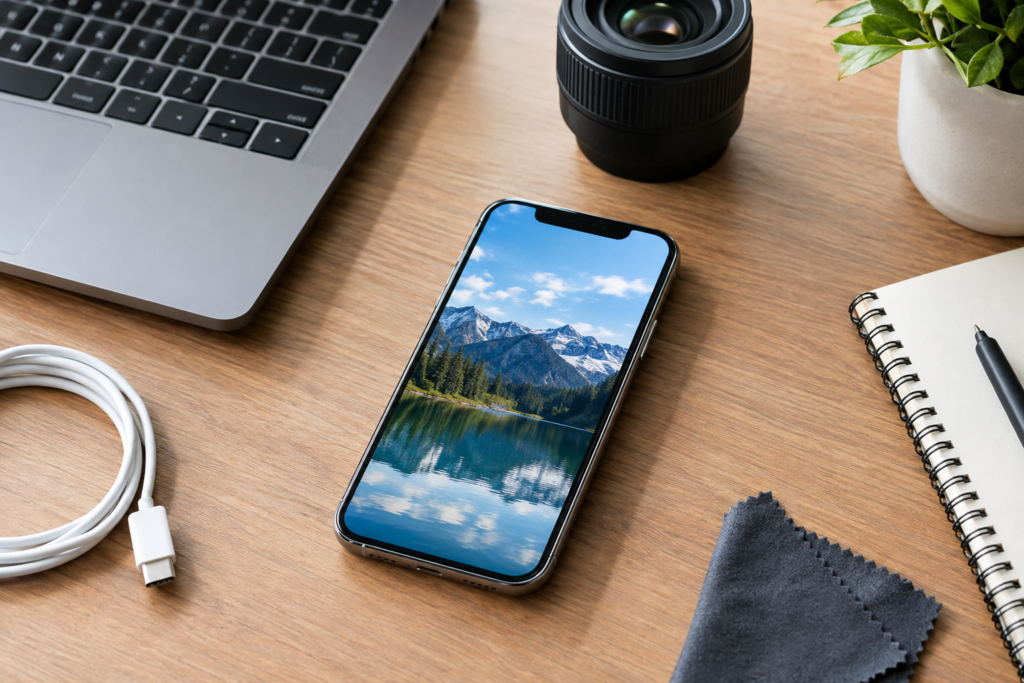
If your iPhone photos look soft, dark, or just not as sharp as you want, the right camera app can make a real difference. Some apps give you more control over focus, exposure, and file format. Others help with video stabilization, editing, or shooting in low light. The best choice depends on how you use your phone day to day, whether you are taking family photos, listing a property, filming business content, or just trying to get cleaner shots without a lot of guesswork.
This guide breaks down practical iPhone camera apps that can help you take better photos and video, plus a few simple tips to get more out of the camera you already have. If you are in the middle of setting up a new phone, troubleshooting camera issues, or trying to improve your results without risking your data, iPhoneXpert can help with safe, remote guidance.
What makes a good iPhone camera app?
The best camera app is not always the one with the most features. It is the one that helps you get the shot you want quickly and reliably. For most people, that means a clean interface, easy controls, and useful tools that do not get in the way.
Here are the features worth looking for:
- Manual controls: Adjust focus, shutter speed, ISO, and white balance when automatic mode is not enough.
- RAW support: Useful if you plan to edit photos later and want more detail to work with.
- Video tools: Frame rate control, stabilization, and audio options can help with better clips.
- Low-light support: Helpful for indoor photos, evening events, and business spaces with mixed lighting.
- Simple editing: Quick crop, color, and exposure tools can save time.
- Privacy-friendly settings: A good app should make it clear what it accesses and why.
If you are using your iPhone for work, such as real estate, product photos, social media, or service calls, these features can save time and improve consistency. If you are using it at home, they can help you capture clearer family photos, better travel shots, and steadier videos.
Top iPhone camera apps worth trying
There are many camera apps in the App Store, but a few stand out because they are practical, widely used, and useful for everyday users as well as small business owners.
Halide
Halide is a strong choice if you want more control without a cluttered screen. It is known for manual settings, RAW capture, and a thoughtful layout that makes advanced shooting feel more manageable. It can be especially useful for users who want to step beyond the default Camera app but still keep things simple.
Best for: people who want manual control, better focus tools, and more editing flexibility later.
ProCamera
ProCamera is another feature-rich option that works well for both photos and video. It offers manual controls, low-light tools, and options for different shooting situations. It is often a good fit for users who want one app that can handle a lot of different needs, from portraits to business content.
Best for: users who want a flexible all-around camera app with strong photo and video features.
Adobe Lightroom Mobile
Lightroom Mobile is not just an editor. It also includes a camera mode that can capture photos in RAW and give you more control over the image before editing. If you already use Lightroom for photo editing, this can be a practical choice because it keeps your workflow in one place.
Best for: users who want to shoot and edit in the same app, especially if they care about color and detail.
FiLMiC Pro
FiLMiC Pro is aimed more at serious video users than casual photographers. It offers manual video controls, focus tools, and options that can help you create more polished clips. If you record interviews, business updates, property walkthroughs, or social content, this kind of control can be useful.
Best for: video creators, small businesses, and anyone who wants more control over filming.
VSCO
VSCO is popular for its filters and editing tools, but it also includes camera features that can help you capture and style photos with a consistent look. It is a good option if you want a simple way to improve the appearance of your images without spending a lot of time editing each one individually.
Best for: casual users, social media posts, and anyone who wants a clean visual style.
Camera+ Legacy or current Camera+ options
Camera+ has long been known for making photography easier for everyday users. Depending on the version available in your region and device compatibility, it may offer helpful tools for focus, exposure, and quick edits. It is worth checking if you want a balance between simplicity and control.
Best for: users who want a friendly interface and practical shooting tools.
Which app is best for photos, video, and everyday use?
The best app depends on what you are trying to improve. A homeowner taking photos for a rental listing may need different tools than a business owner filming product demos or a parent capturing school events. Here is a simple way to think about it.
- For everyday photos: Halide or Camera+ can give you more control without making the process too complicated.
- For editing and shooting together: Lightroom Mobile is a strong choice if you want a smooth workflow.
- For video work: FiLMiC Pro is better suited to users who want manual video settings.
- For social media style photos: VSCO can help create a consistent look with less effort.
- For mixed use: ProCamera is a good all-around option for people who want one app for many situations.
If you are not sure where to start, begin with one app that matches your main goal. Too many camera apps can make things confusing and may lead to duplicate photo libraries, extra subscriptions, or settings that are hard to track.
Simple tips to get better iPhone photos without buying new gear
Even the best app will not fix every photo problem. A few basic habits can improve your results right away.
- Clean the lens: Fingerprints and dust are a common reason photos look blurry or hazy.
- Use good light: Natural light usually gives better results than a dark room with mixed bulbs.
- Tap to focus: Make sure the camera is focusing on the subject you actually want sharp.
- Lower exposure when needed: Bright windows, shiny surfaces, and outdoor scenes can fool the camera.
- Hold the phone steady: A small tripod or stable surface can help with sharper photos and smoother video.
- Back up important shots: Save your photos to iCloud or another trusted backup before changing apps, resetting settings, or moving to a new phone.
For business owners, these basics matter even more. A clean lens and steady framing can make product photos, service photos, and listing images look more professional without extra editing. For homeowners, these same habits can help with family albums, home projects, and travel memories.
Privacy and safety tips before installing a camera app
Camera apps often ask for access to your photos, microphone, and sometimes location. That does not automatically mean the app is unsafe, but it is smart to review permissions carefully before you install anything.
- Check the developer: Look for a clear company name, support page, and recent updates.
- Review permissions: Only allow access that makes sense for how you plan to use the app.
- Read recent reviews: Pay attention to comments about crashes, subscriptions, or unexpected behavior.
- Watch for subscription details: Some apps look free at first but require payment for useful features.
- Keep your photos backed up: If you test a new app and later remove it, you will still have your images safely stored.
If you are dealing with a camera app that keeps crashing, a phone that will not save photos properly, or storage issues that make it hard to shoot, it may be worth getting help before changing too many settings. That can reduce the chance of losing files or making the problem harder to trace.
When to get help from iPhoneXpert
If your camera is not working the way it should, the issue may not be the app at all. It could be a storage problem, a settings conflict, a permissions issue, or a software bug. In some cases, the default Camera app and third-party apps can both be affected.
iPhoneXpert offers remote help for people who want practical, privacy-first guidance without the stress of guessing through settings alone. We can help you review camera app options, check common iPhone settings, and work through photo or video problems in a safe, step-by-step way. If you are setting up a new phone, trying to improve your camera workflow, or dealing with a stubborn issue, use the iPhoneXpert remote help request form or the relevant iPhone help page for support.
Final thoughts
The best iPhone camera app is the one that fits your needs, your comfort level, and the kind of photos or video you actually take. For some people, that means a simple app with better focus and exposure tools. For others, it means a more advanced app for RAW photos or manual video control. Start with one clear goal, test a few options, and keep your photos backed up before making bigger changes.
If you want safe, practical guidance on camera apps, iPhone settings, or photo and video troubleshooting, iPhoneXpert is here to help through remote support and the relevant iPhone help page.
Use iPhoneXpert tools before you spend money.
Compare repair, replacement, storage, security, buying, and remote-help options with practical tools built for everyday iPhone owners.
Reviewed for practical iPhone, Mac, and device-care guidance.
iPhoneXpert content is written to help readers make safer repair, buying, setup, storage, iCloud, and security decisions. Recommendations should prioritize fit, compatibility, safety, and value.
How this guide is maintained
This article is part of the iPhoneXpert reader guide library. We review practical repair, protection, buying, and troubleshooting pages for clarity and usefulness as devices, software, and repair choices change.
Need help deciding what to do?
Compare repair costs, replacement value, data risk, and urgency before you spend money.
Repair or replace?