
Apple ID Problems: Sign-In, Password, and Account Recovery Basics
If you cannot sign in to your Apple ID, keep getting password errors, or are stuck in account recovery, the safest first step is to slow down and check…
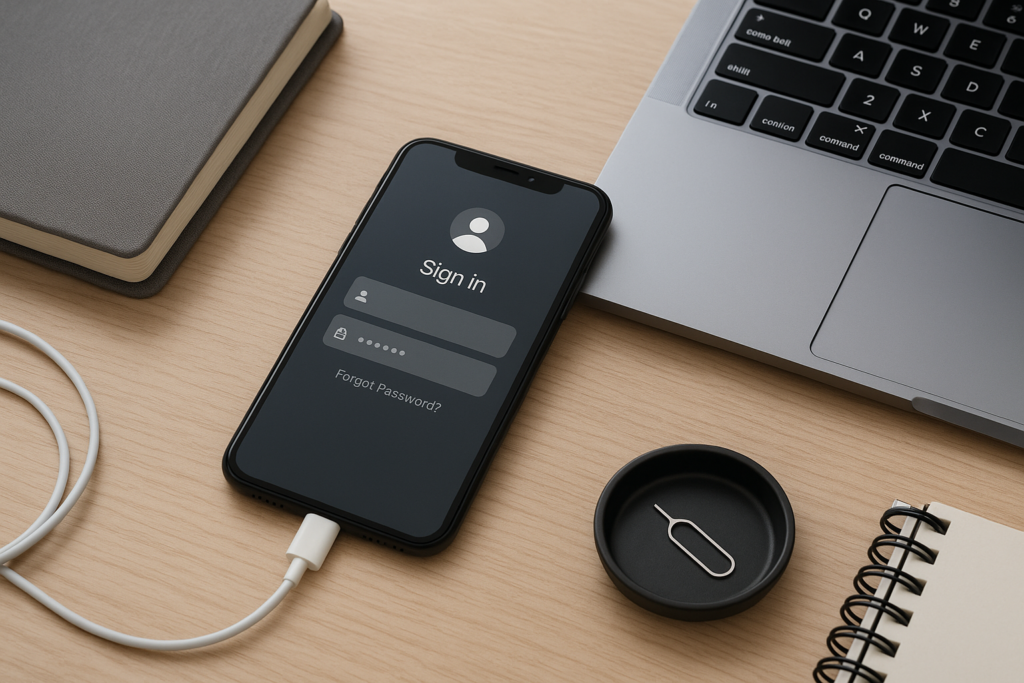
If you cannot sign in to your Apple ID, keep getting password errors, or are stuck in account recovery, the safest first step is to slow down and check the basics. Most Apple ID issues come from a forgotten password, a changed phone number, a trusted device that is no longer available, or a security prompt that was missed. In many cases, the fix is simple. In other cases, the best move is to protect your data, avoid repeated failed attempts, and follow Apple’s recovery process carefully.
For iPhone users, these problems can interrupt email, app downloads, iCloud photos, backups, Find My, and even access to a business phone used for work. If you manage a family device, a small business phone, or your own everyday iPhone, it helps to know what to try first and what not to do. If you want safe, practical guidance, iPhoneXpert remote help can walk you through the next steps without guesswork.
Start with the most common Apple ID sign-in problems
Before assuming the account is locked or compromised, check the simple causes. A surprising number of sign-in issues are related to typing mistakes, outdated passwords saved on the device, or a temporary security delay after too many attempts.
- Make sure the email address or phone number entered is the one linked to the Apple ID.
- Check for typos, extra spaces, or an old email address you no longer use.
- Confirm that the iPhone has a stable internet connection.
- Restart the device if the sign-in screen keeps looping or freezing.
- Look for a password prompt on another trusted Apple device you still use.
If you recently changed your password, remember that some apps and services may still be trying to use the old one. That can make it look like the Apple ID itself is broken when the issue is really just a mismatch between devices and saved credentials.
What to do if your Apple ID password is not working
A password problem can mean the password was forgotten, changed on another device, or entered incorrectly too many times. The safest approach is to use Apple’s official reset path rather than guessing repeatedly. Too many failed attempts can slow down access and make recovery take longer.
Good first steps
- Try signing in on a trusted device where you may already be logged in.
- Use the password reset option from the sign-in screen or Apple account page.
- Check whether your iPhone is asking for the Apple ID password after an update, app download, or iCloud sync.
- Make sure you are not confusing your Apple ID password with your iPhone passcode.
It is also worth checking whether a family member, coworker, or previous owner changed the account details. This can happen with shared devices, older phones passed between family members, or business phones that were not fully separated from a prior setup.
Account recovery basics and why it can take time
Account recovery is designed for situations where you cannot sign in and do not have access to a trusted device or trusted phone number. It is meant to protect the account, which is why the process can be slow. In some cases, Apple may ask you to wait before you can reset the password or regain access.
During recovery, the most important thing is to keep your contact information current and avoid starting the process over and over. Repeated changes can create confusion and delay the next step. If you still have access to a trusted device or a trusted number, use that path first because it is usually faster and less stressful.
Helpful recovery habits
- Use a phone number and email address you can still access.
- Keep the device charged and connected while waiting for recovery updates.
- Watch for official Apple messages and avoid suspicious links.
- Do not share verification codes with anyone, even if they claim to be support.
If you are helping a parent, employee, or client, write down the steps you have already tried. That makes it easier to avoid repeating the same actions and helps identify whether the issue is with the password, the trusted number, or the device itself.
How to protect your account while troubleshooting
When Apple ID access is unstable, privacy matters. Scammers often take advantage of account confusion by sending fake recovery messages, asking for codes, or offering “quick fixes” that lead to phishing pages. A careful approach protects both your account and your personal information.
- Only use Apple’s official sign-in and recovery screens.
- Never share your Apple ID password, device passcode, or verification codes.
- Be cautious with texts or emails that create urgency or ask you to click a link immediately.
- Check the sender address carefully before opening any account-related message.
- If something feels off, stop and verify through the device settings or official support path.
For homeowners, this matters because Apple ID access often controls photos, backups, smart home apps, and family sharing. For business owners, it can affect shared calendars, work contacts, authentication apps, and devices used for customer communication. A rushed response can create a bigger problem than the original sign-in issue.
When to check your trusted devices, phone number, and settings
Many Apple ID problems come down to missing trust factors. If you changed your phone number, replaced your iPhone, or no longer have access to an older device, the account may not have enough information to verify you quickly. That does not always mean the account is lost, but it does mean the recovery path may be different.
Review these items if you can still access part of the account
- Trusted phone numbers listed on the account.
- Trusted devices that are still signed in.
- Recovery email addresses that are active and secure.
- Whether two-factor authentication is already turned on.
- Whether the device date, time, and network settings are correct.
If you are setting up a replacement iPhone, moving to a new number, or preparing a device for resale, update the account details before making the switch. That small step can prevent a lot of frustration later.
Practical tips for families, homeowners, and small businesses
Apple ID issues affect more than one phone. In a home, one account can connect multiple devices, shared subscriptions, and photo libraries. In a small business, the same account may be tied to a work phone, app purchases, or a device used by several staff members. The best fix is often to organize the account before the next problem appears.
For households
- Keep a secure record of the account email and trusted phone number.
- Make sure each family member knows which device is signed in to which account.
- Back up important photos and files before changing passwords or resetting devices.
- Review shared purchases and family settings so there is less confusion later.
For business owners
- Use a business-controlled email address for work-related Apple accounts when appropriate.
- Avoid sharing one Apple ID across multiple employees if it can be separated safely.
- Document trusted numbers and recovery contacts for company devices.
- Back up work data before making account or device changes.
Local support can also help when you are juggling a busy schedule. If your iPhone is needed for calls, deliveries, appointments, or customer messages, even a short account lockout can disrupt the day. Getting clear guidance early can save time and reduce stress.
When to get help instead of trying random fixes
It is a good idea to stop troubleshooting and get help if you keep hitting the same error, cannot access your trusted number, or are unsure whether the account is secure. Random attempts can make recovery slower and may create more confusion if you are changing settings without a plan.
Get help sooner if:
- You are locked out after multiple failed sign-in attempts.
- You no longer have access to the trusted phone number.
- Your iPhone is asking for a password you do not recognize.
- You suspect a phishing message or account takeover attempt.
- You need the phone working quickly for home or business use.
Before any reset, transfer, or major account change, make a backup if you can. That simple step can protect photos, messages, notes, and app data if the process does not go as planned.
Get safe, practical help from iPhoneXpert
If you are dealing with Apple ID sign-in trouble, password confusion, or account recovery delays, iPhoneXpert can help you sort through the next steps with privacy-first, practical support. Use iPhoneXpert remote help or the relevant iPhone help page when you want clear guidance without risking your account security. We can help you understand what to try, what to avoid, and how to protect your data while you work through the issue.
If you are ready to move forward, request remote help and get support that is focused on safe troubleshooting, careful account handling, and real-world iPhone use at home or at work.
Use iPhoneXpert tools before you spend money.
Compare repair, replacement, storage, security, buying, and remote-help options with practical tools built for everyday iPhone owners.
Reviewed for practical iPhone, Mac, and device-care guidance.
iPhoneXpert content is written to help readers make safer repair, buying, setup, storage, iCloud, and security decisions. Recommendations should prioritize fit, compatibility, safety, and value.
How this guide is maintained
This article is part of the iPhoneXpert reader guide library. We review practical repair, protection, buying, and troubleshooting pages for clarity and usefulness as devices, software, and repair choices change.
Need help deciding what to do?
Compare repair costs, replacement value, data risk, and urgency before you spend money.
Repair or replace?