
iPhone Speaker Sounds Muffled: Cleaning, Settings, and Repair Options
If your iPhone speaker sounds muffled, quiet, crackly, or like the sound is trapped behind a layer of dust, you are not alone. In many cases, the issue…
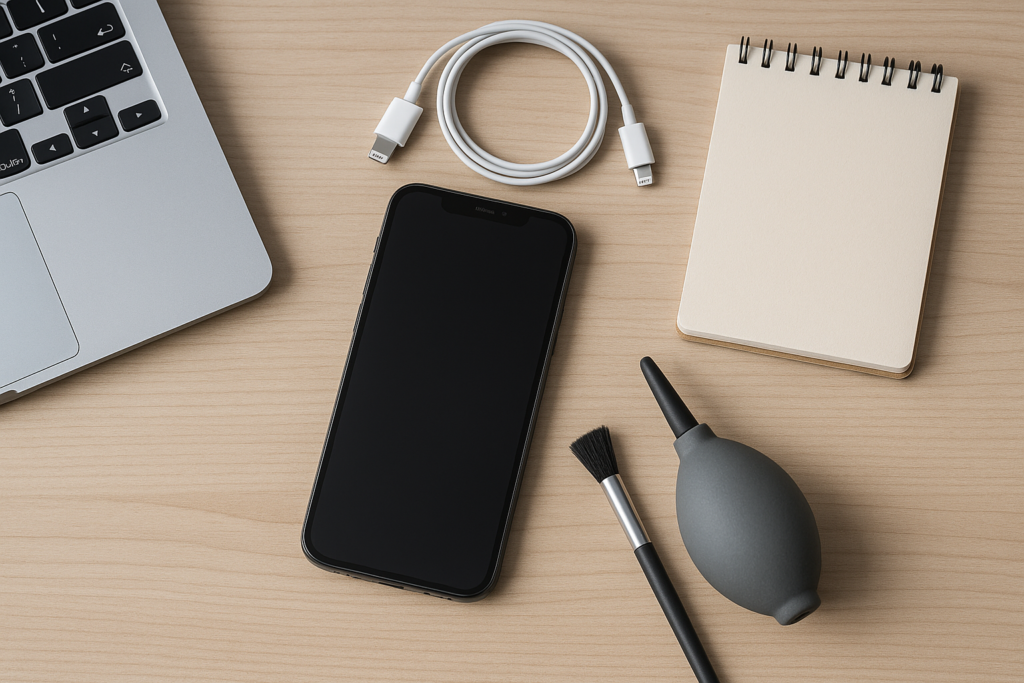
This guide walks through practical cleaning steps, settings to review, common causes, and when it makes sense to get help. Whether you use your iPhone for work calls, family communication, deliveries, or managing a business on the go, clear speaker audio matters. If you want safe, practical guidance without guesswork, iPhoneXpert can help through remote help or the relevant iPhone help page.
What a muffled iPhone speaker usually means
A muffled speaker does not always mean the hardware is failing. Often, the sound path is being blocked or the audio is being redirected somewhere else. The most common causes include:
- Lint, dust, or pocket debris inside the speaker grille
- A thick case or screen protector covering part of the speaker opening
- Moisture after rain, spills, or humid conditions
- Low volume, audio balance, or accessibility settings
- Bluetooth sending sound to earbuds, a car system, or a nearby speaker
- Software glitches after an update or app issue
- Physical damage to the speaker from drops or liquid exposure
If the problem started suddenly, think about what changed recently. A fall, a cleaning product, a new case, or a recent iOS update can all be clues.
Safe cleaning steps you can try first
Cleaning is often the first and safest place to start, but it should be done carefully. The speaker openings on an iPhone are small, and aggressive cleaning can push debris deeper or damage the mesh.
Start with the outside of the phone
Remove the case and any accessories. Check whether the muffled sound improves right away. Some cases block the speaker or trap dust around the grille. If the sound is clearer with the case off, the issue may be the case design or buildup around the opening.
Use a soft, dry brush
A clean, soft-bristled brush can help loosen lint and dust from the speaker area. Brush gently across the grille rather than pressing into it. Keep the phone turned off while cleaning if possible. Avoid sharp tools, pins, paper clips, compressed air at close range, and liquids. Those can cause more harm than good.
Check for moisture
If the phone was exposed to water, rain, steam, or a spill, let it dry naturally in a dry indoor place. Do not use heat from a hair dryer or place it in rice. Heat can damage internal parts, and rice can leave dust behind. If the sound is muffled after moisture exposure, give the device time to dry before testing again.
Look at the speaker mesh under light
Use a flashlight to inspect the speaker opening. If you can see a visible layer of lint or grime, gentle cleaning may help. If the mesh looks damaged, dented, or pushed in, that is a stronger sign that repair may be needed.
Settings to check before assuming the speaker is broken
Sometimes the speaker is fine, but the audio is being limited by a setting or routed to another device. These checks take only a few minutes and can save a lot of frustration.
Confirm the volume is actually up
Use the side buttons and also check volume inside the app you are using. Some apps keep their own audio level. A call may sound low even when media volume is set correctly, or vice versa.
Turn off Bluetooth temporarily
If Bluetooth is on, your iPhone may be sending sound to headphones, a speaker, a car system, or another nearby device. Turn Bluetooth off in Control Center or Settings and test the speaker again. This is one of the most common reasons people think the iPhone speaker is muffled when the sound is actually going elsewhere.
Review accessibility audio settings
Check whether audio balance has shifted left or right. If the balance is not centered, one speaker may seem much quieter than the other. Also review any hearing or sound-related accessibility settings that may affect output.
Test with multiple apps
Try a phone call, a voice memo, a video, and a music app. If the problem appears in every app, the issue is more likely hardware, a system setting, or debris. If it only happens in one app, the app itself may be the problem.
Restart the iPhone
A simple restart can clear temporary software glitches. If the speaker issue started after an update or app crash, restarting is worth trying before moving to more advanced steps.
When the problem may be more than dirt or settings
If cleaning and settings checks do not help, the speaker may have a hardware issue. Common signs include distorted sound, crackling at higher volume, sound that cuts in and out, or one speaker working while the other does not.
Hardware-related issues can happen after drops, liquid exposure, or long-term wear. In some cases, the speaker module may be damaged, or internal components may be affected by corrosion. If the phone has also had charging issues, microphone problems, or Face ID concerns after a fall or spill, the damage may be broader than the speaker alone.
Do not keep testing with full volume if it sounds distorted
Playing audio at maximum volume on a damaged speaker can make the distortion more noticeable and may worsen an already failing part. If the sound is clearly abnormal, keep testing brief and moderate.
Repair options and what to expect
If your iPhone speaker still sounds muffled after safe cleaning and basic troubleshooting, repair may be the next step. The right option depends on the model, the symptoms, and whether the issue is isolated to the speaker or part of a larger problem.
Speaker replacement
If the speaker module is damaged, replacement may restore normal audio behavior. This is a common repair when the speaker has been affected by wear, impact, or liquid exposure. A proper diagnosis matters because muffled sound can sometimes be caused by more than one component.
Internal cleaning and inspection
In some cases, the inside of the phone may need inspection for dust, corrosion, or residue. This is especially relevant after moisture exposure. Internal cleaning is not something most users should attempt at home, since opening the phone can create additional risks.
Software troubleshooting support
If the problem is caused by a setting, update issue, or app conflict, a repair may not be necessary. A guided troubleshooting session can help narrow down the cause before you spend money on parts or service.
Back up before any repair or reset
Before you reset settings, update iOS, or hand the phone over for service, make a backup if you can. That helps protect your photos, messages, and files in case a repair requires additional steps. Backups are especially important for business owners who rely on the phone for customer calls, messages, and two-factor sign-ins.
Practical tips for homeowners and business owners
For home users, a muffled speaker can be an inconvenience during calls, videos, alarms, and voice messages. For business owners, it can affect customer communication, delivery coordination, appointment scheduling, and remote work. A few habits can reduce the chance of repeat problems.
- Keep the phone in a clean pocket, bag, or case to reduce lint buildup
- Avoid using the phone in steamy bathrooms, kitchens, or dusty work areas when possible
- Remove the case occasionally and inspect the speaker openings
- Use a quality case that does not block audio openings
- After rain or spills, let the phone dry fully before testing sound again
- Back up regularly so a repair or replacement does not interrupt your routine
If your phone is part of your workday, even a small audio issue can become a bigger problem fast. Clear speaker sound helps you stay reachable and avoid missed details on calls and voice notes.
Local relevance: why quick troubleshooting matters
In busy neighborhoods, workplaces, and commutes, iPhones pick up dust, lint, and moisture more often than people expect. Phones carried in pockets, purses, tool bags, delivery vehicles, or outdoor environments are especially likely to collect debris around the speaker grille. That is why a muffled speaker is such a common support request for local users.
Whether you are at home, running a small business, or managing a team on the move, it helps to solve the issue quickly and safely. You do not need to guess at the cause or risk damaging the phone with harsh cleaning methods. A careful check of the speaker, settings, and recent changes usually points you in the right direction.
When to get help from iPhoneXpert
If you have already tried safe cleaning, checked Bluetooth and audio settings, and restarted the phone but the sound is still muffled, it may be time for a more detailed look. iPhoneXpert offers remote help for practical troubleshooting and guidance on the next best step. That can be especially useful if you are not sure whether the issue is software, debris, moisture, or a speaker that needs service.
Use the iPhoneXpert remote help request form or the relevant iPhone help page when you want safe, practical guidance without unnecessary risk. If you are planning a repair, backup, reset, or transfer, it is smart to get advice first so you can protect your data and avoid avoidable mistakes.
Quick recap
A muffled iPhone speaker is often caused by lint, a case, moisture, Bluetooth routing, or a setting that is easy to miss. Start with gentle cleaning and simple checks before assuming the speaker is damaged. If the sound stays distorted or quiet after those steps, the issue may be hardware-related and worth professional guidance.
For help figuring out the cause and choosing the safest next step, contact iPhoneXpert through remote help or the relevant iPhone help page.
Use iPhoneXpert tools before you spend money.
Compare repair, replacement, storage, security, buying, and remote-help options with practical tools built for everyday iPhone owners.
Reviewed for practical iPhone, Mac, and device-care guidance.
iPhoneXpert content is written to help readers make safer repair, buying, setup, storage, iCloud, and security decisions. Recommendations should prioritize fit, compatibility, safety, and value.
How this guide is maintained
This article is part of the iPhoneXpert reader guide library. We review practical repair, protection, buying, and troubleshooting pages for clarity and usefulness as devices, software, and repair choices change.
Need help deciding what to do?
Compare repair costs, replacement value, data risk, and urgency before you spend money.
Repair or replace?