
iPhone Battery Draining Fast: What to Check Before Replacing It
iPhone Battery Draining Fast: What to Check Before Replacing It If your iPhone battery seems to drop quickly, the problem is not always the battery…
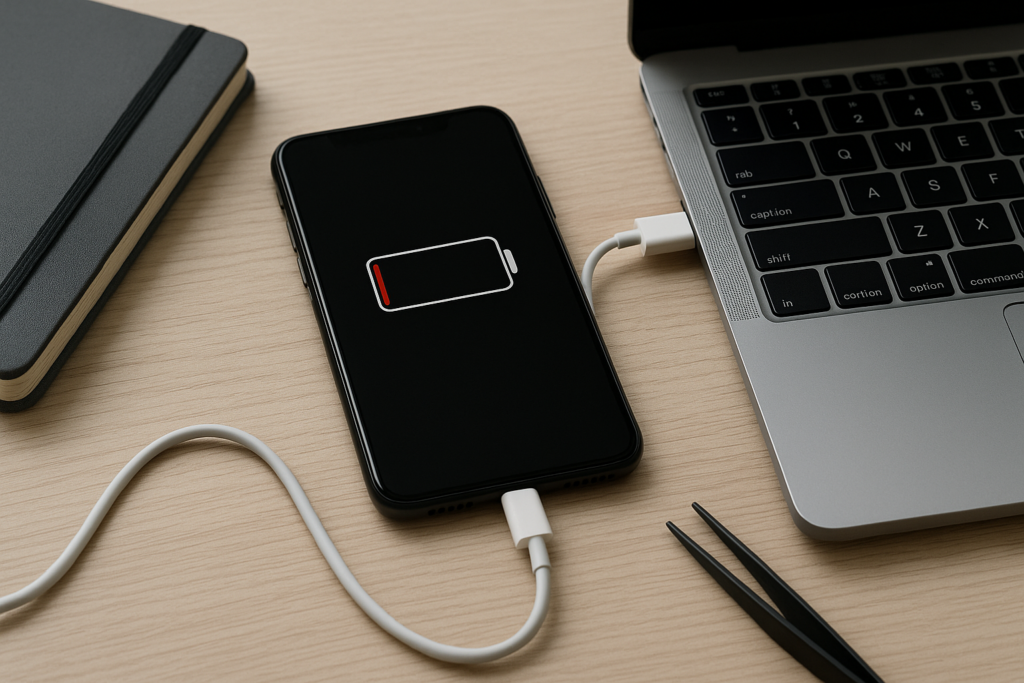
If your iPhone battery seems to drop quickly, the problem is not always the battery itself. In many cases, a setting, app, signal issue, or background process is making the phone work harder than it should. Before you spend money on a replacement, it helps to check a few common causes and make sure the issue is really battery health rather than normal power use.
This guide walks through the most useful things to check first, including simple fixes you can do at home, signs that point to a worn battery, and when it makes sense to get help. If you are in a busy home or business setting, these steps can also help reduce downtime and avoid replacing parts too early.
Start with the basics: is the battery actually the problem?
Before looking at repairs, check whether the battery drain is happening all the time or only in certain situations. A phone that loses charge quickly during heavy use, poor signal, video calls, navigation, or hotspot use may be behaving normally. A battery that drops fast even when the phone is idle is more likely to need attention.
Open Settings and look at Battery. This screen can show which apps are using the most power and whether the drain is coming from the screen, background activity, or a specific app. If one app is using far more battery than expected, that is often the first thing to fix.
- Check whether battery drain happens while the phone is idle
- Look for one app using an unusually high amount of power
- Notice whether the phone gets warm during normal use
- Pay attention to sudden changes after an iOS update or app install
Check battery health and charging behavior
Battery health is one of the clearest indicators of whether a replacement may be needed. In Settings, go to Battery and then Battery Health & Charging. If the maximum capacity is significantly reduced, the phone may not hold charge as long as it used to. That said, a lower percentage alone does not always explain every drain issue.
Also look for messages about peak performance or battery service. These messages can suggest the battery is aging, but they should be considered alongside real-world symptoms. A phone with a healthy battery percentage can still drain quickly if an app is stuck, the signal is weak, or the screen brightness is too high.
Charging habits matter too. If the phone only charges slowly, disconnects from the cable, or jumps around in battery percentage, the issue could be the cable, charging port, power adapter, or software rather than the battery itself.
- Review maximum capacity in Battery Health
- Watch for battery service warnings
- Try a known-good cable and charger
- Check whether the charging port has lint or debris
Look at apps, background activity, and settings that drain power
Many battery complaints come from settings that keep the phone active in the background. This is common after installing new apps, restoring a backup, or changing account settings. A few adjustments can make a noticeable difference without affecting normal use too much.
Apps running too much in the background
Some apps refresh content even when you are not using them. That can be helpful for email, messaging, or navigation, but it can also waste power if too many apps are allowed to refresh. Review Background App Refresh and turn it off for apps that do not need it.
Location services and notifications
Apps that constantly use location or send frequent alerts can drain the battery faster than expected. Check which apps have location access set to Always and decide whether they really need it. You can also reduce unnecessary notifications, especially from shopping, social, and news apps.
Display settings
The screen is one of the biggest battery users. High brightness, always-on display features, and long auto-lock times can all increase drain. Lower brightness when possible, use auto-brightness if it works well for you, and shorten the screen timeout if the phone is often left on a desk.
- Turn off Background App Refresh for nonessential apps
- Review location permissions
- Reduce unnecessary notifications
- Lower screen brightness and auto-lock time
Signal strength, Wi-Fi, and travel can make battery drain worse
Weak cellular signal is a common reason an iPhone battery seems to disappear quickly. When the phone struggles to stay connected, it uses more power searching for a signal. This is especially noticeable in basements, rural areas, large buildings, parking garages, and places with crowded networks.
If you are using the phone in a home office, retail space, warehouse, or other business environment, poor signal in certain rooms can create the impression that the battery is failing. The same thing can happen when moving between Wi-Fi and cellular data throughout the day.
Try comparing battery use in different locations. If the drain is much worse in one building or one part of town, the issue may be network-related rather than battery-related. Turning on Wi-Fi when available, using a stronger network, or avoiding repeated signal searching can help reduce drain.
- Notice whether battery drain is worse in weak-signal areas
- Use Wi-Fi when it is reliable and secure
- Check whether the phone is constantly switching networks
- Test the phone in a different location before assuming battery failure
After updates, restores, or new app installs, give the phone time
It is common for an iPhone to use more battery for a while after a software update, restore, or major account change. The phone may be reindexing photos, syncing mail, downloading app data, or finishing background tasks. That extra activity can temporarily make the battery seem worse than it really is.
If the drain started right after an update, wait a day or two and watch for improvement. Make sure the phone is connected to Wi-Fi and power overnight so it can finish background work. If the battery drain continues well after the phone should have settled down, then it is worth checking for a software issue or hardware problem.
Before any reset, transfer, or major repair step, back up the iPhone first. A current backup helps protect your photos, messages, and app data if troubleshooting requires more than a simple settings change.
- Allow time after iOS updates for background tasks to finish
- Check whether a new app or account sync started the drain
- Keep the phone on Wi-Fi and power overnight when needed
- Back up the device before major troubleshooting
When a battery replacement may actually be the right next step
Some signs point more strongly to battery wear than to a settings issue. If the phone shuts off unexpectedly, drops from a high percentage to a low one very quickly, or needs to be charged multiple times a day with normal use, the battery may be nearing the end of its useful life. Swelling, unusual heat, or a damaged battery should be treated carefully and checked by a professional.
It is also worth considering the age of the device. Older iPhones naturally lose battery capacity over time, especially if they have been charged heavily for years. In that case, a replacement may improve day-to-day usability, but it is still smart to rule out app and signal issues first so you are not replacing a part unnecessarily.
For homeowners, this can mean avoiding an avoidable repair cost. For business owners, it can mean fewer interruptions for staff who rely on their phones for calls, deliveries, scheduling, and customer communication.
- Unexpected shutdowns at moderate battery levels
- Very fast drops in charge during normal use
- Battery swelling or unusual heat
- Frequent charging needed even after basic troubleshooting
Practical next steps if you want a safer answer before replacing the battery
If you are not sure whether the battery is worn out, a methodical check can save time and reduce guesswork. Start with battery health, then review the battery usage screen, app settings, signal conditions, and recent changes to the phone. If the cause is still unclear, a remote troubleshooting session can help narrow it down without rushing into a replacement.
That approach is especially useful if you manage multiple iPhones in a household or small business. It can help you spot patterns, compare devices, and decide whether the issue is one phone, one app, or a broader settings problem.
iPhoneXpert offers remote help for practical iPhone troubleshooting, along with relevant iPhone help pages for common battery and performance issues. If you want safe, privacy-first guidance before replacing a battery, use the iPhoneXpert remote help request form and get help with the next best step. As always, back up your iPhone first if you expect to make major changes.
Use iPhoneXpert tools before you spend money.
Compare repair, replacement, storage, security, buying, and remote-help options with practical tools built for everyday iPhone owners.
Reviewed for practical iPhone, Mac, and device-care guidance.
iPhoneXpert content is written to help readers make safer repair, buying, setup, storage, iCloud, and security decisions. Recommendations should prioritize fit, compatibility, safety, and value.
How this guide is maintained
This article is part of the iPhoneXpert reader guide library. We review practical repair, protection, buying, and troubleshooting pages for clarity and usefulness as devices, software, and repair choices change.
Need help deciding what to do?
Compare repair costs, replacement value, data risk, and urgency before you spend money.
Repair or replace?